Exporting tables from MS Access to SQL Server 2008
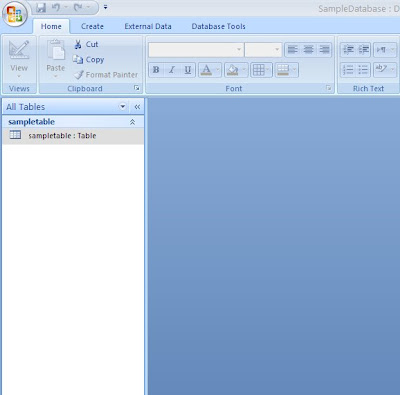
Here are the steps to export it to SQL Server 2008: 1. The open the MS Access database and select the table that you want to export. 2. Goto Database tools from the main menu. 3. Click SQL Server from the Move Data pane. 4. Select the "Use Existing Database" option and click next. 5. Click new and create a new DSN Name. 6. Select SQL Server from the list box and click next. 7. Type a name that you want to be as your data source name. Then, Click next and it will show you a confirmation message box. 8. Click finish if it is confirmed. 9. Give a description whatever you like and select the server name from the drop down menu. Server name is the name where your database resides. Then, Click next. 10. Leave default and press next. 11. Leave default settings and click next. 12. Leave default settings and click next. 13. If you want to test your connection then you can click test data source button in the below. 14. This shows that your connection is successful. 15. Select your new...